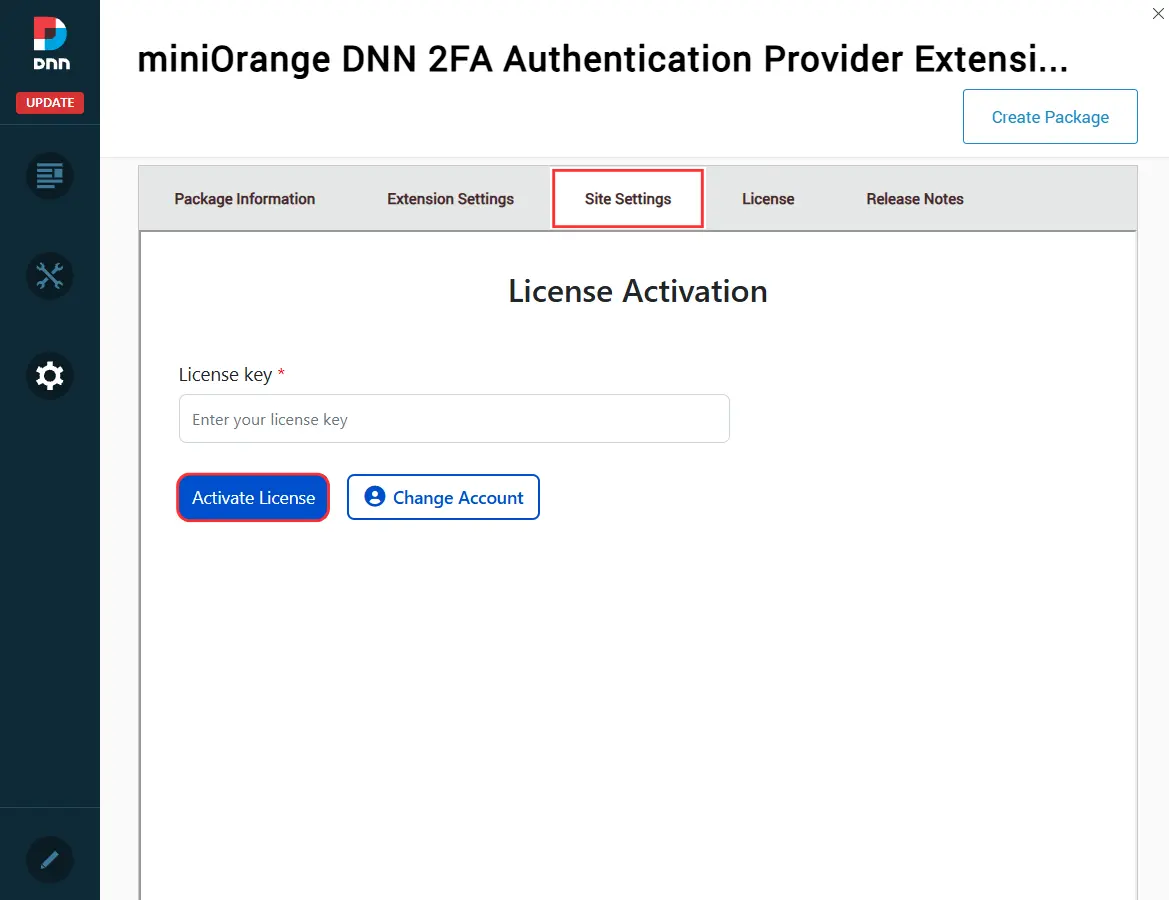
The DNN 2FA Authentication Provider supports Trial, Premium, and Enterprise license activation. Follow the steps below to activate your preferred license in the DNN 2FA plugin.
Trial License Activation
You can activate the Trial License in the DNN 2FA plugin using the license key or license file received over email.
- Navigate to the Site Settings tab to configure DNN 2FA.
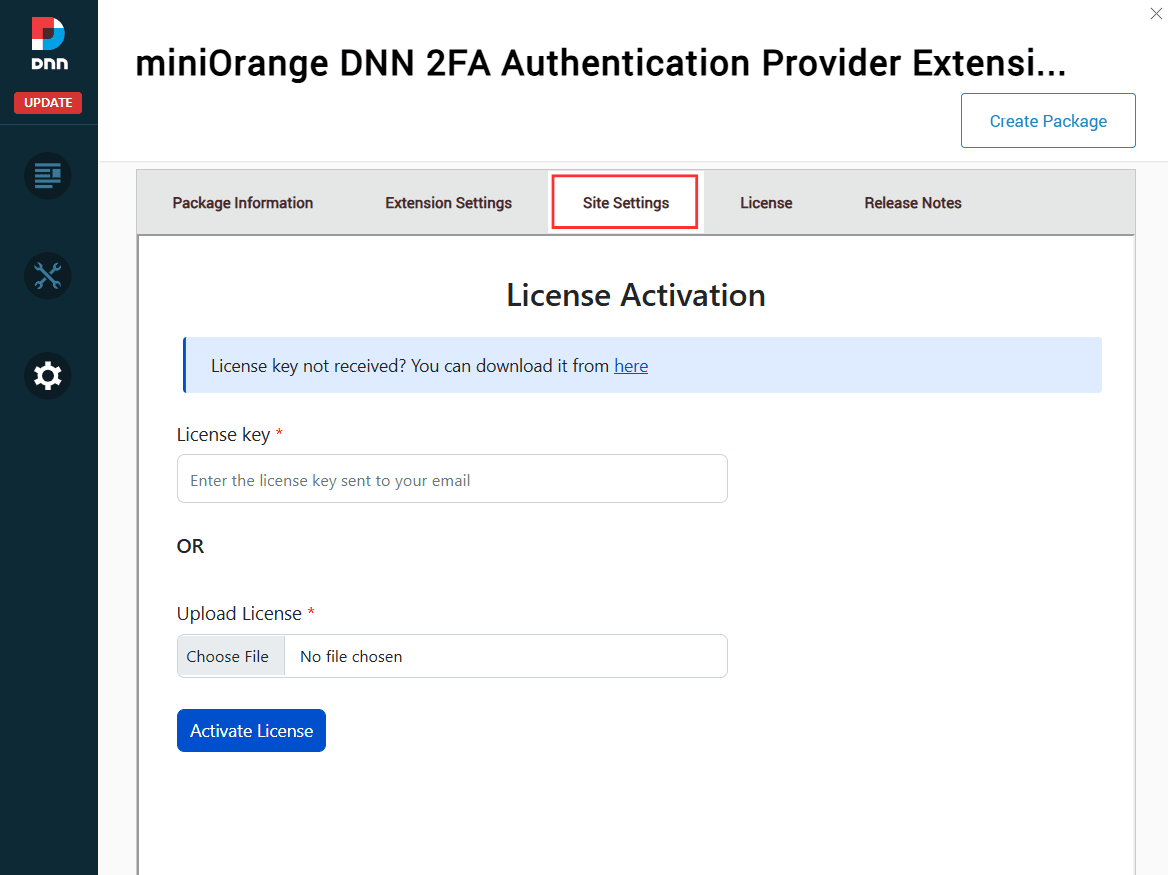
- To activate DNN 2FA, enter the license key received via email in the provided input field.
- If you haven’t received the license key, click on the “here” link to download it, and then upload the license file using the Choose File button.
- Click on the Activate License button to complete the activation.
Premium and Enterprise License Activation
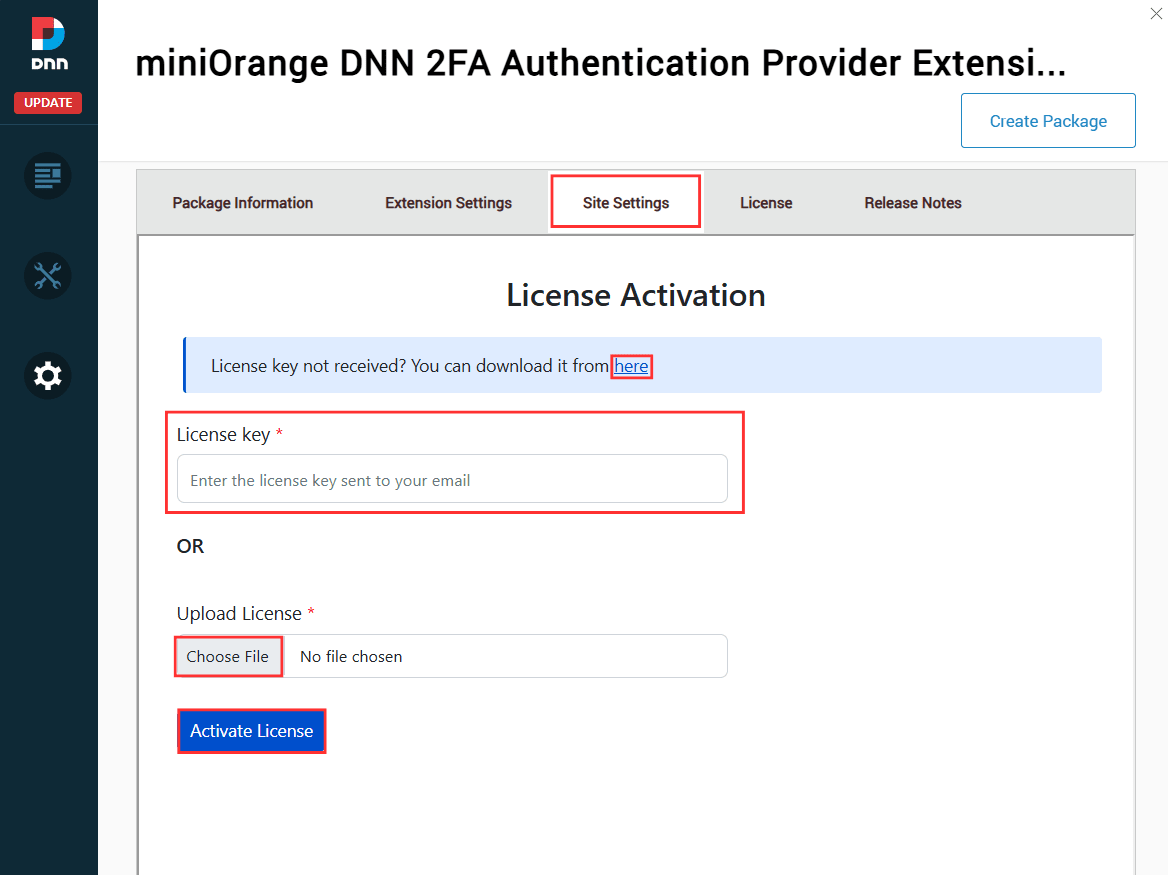
To activate the Premium or Enterprise License, use the license key associated with your miniOrange account.
- Navigate to the Site Settings tab to configure DNN 2FA.
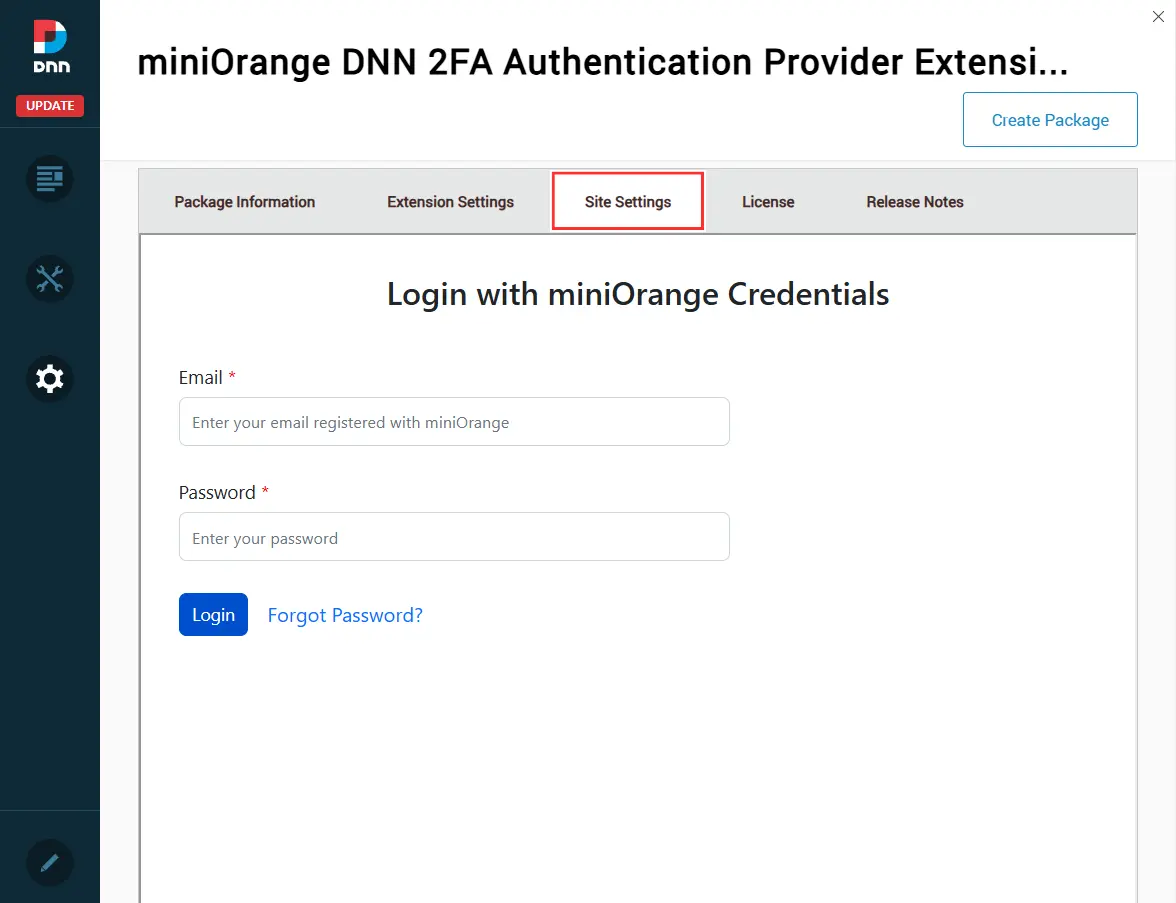
- Log in to the DNN 2FA plugin to access the admin dashboard using your miniOrange account under which the license is purchased.
- Log in to https://portal.miniorange.com/ using your registered account credentials. After logging in, you can find your license key on the Dashboard.
- Enter the license key in the License Key field and click on the Activate License button.