When your WordPress SAML SSO plugin license is transferred from one email address to another, you will need to remove the old miniOrange account from the plugin and then log in with the new email address.
Steps to log in with the new miniOrange account:
-
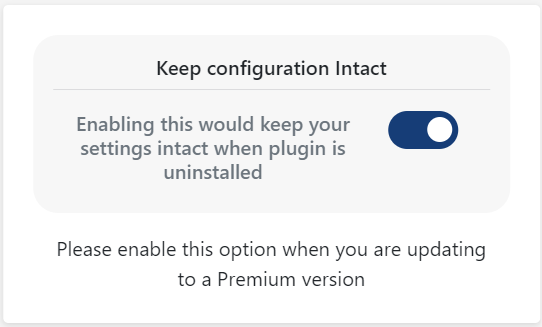
Open your WordPress Admin Dashboard and enable Keep Settings Intact toggle in the IDP Configuration tab. You will see this option below the Support form on the right. This ensures your existing plugin configuration remains unchanged when you remove the old account.
- Go to the WordPress SAML SSO plugin → Account Info tab. Click Remove Account.
- Log in with your new email address and enter the license key. After removing the old account, sign in using the new email address to which the license was transferred.
Recommended (backup to prevent SSO downtime):
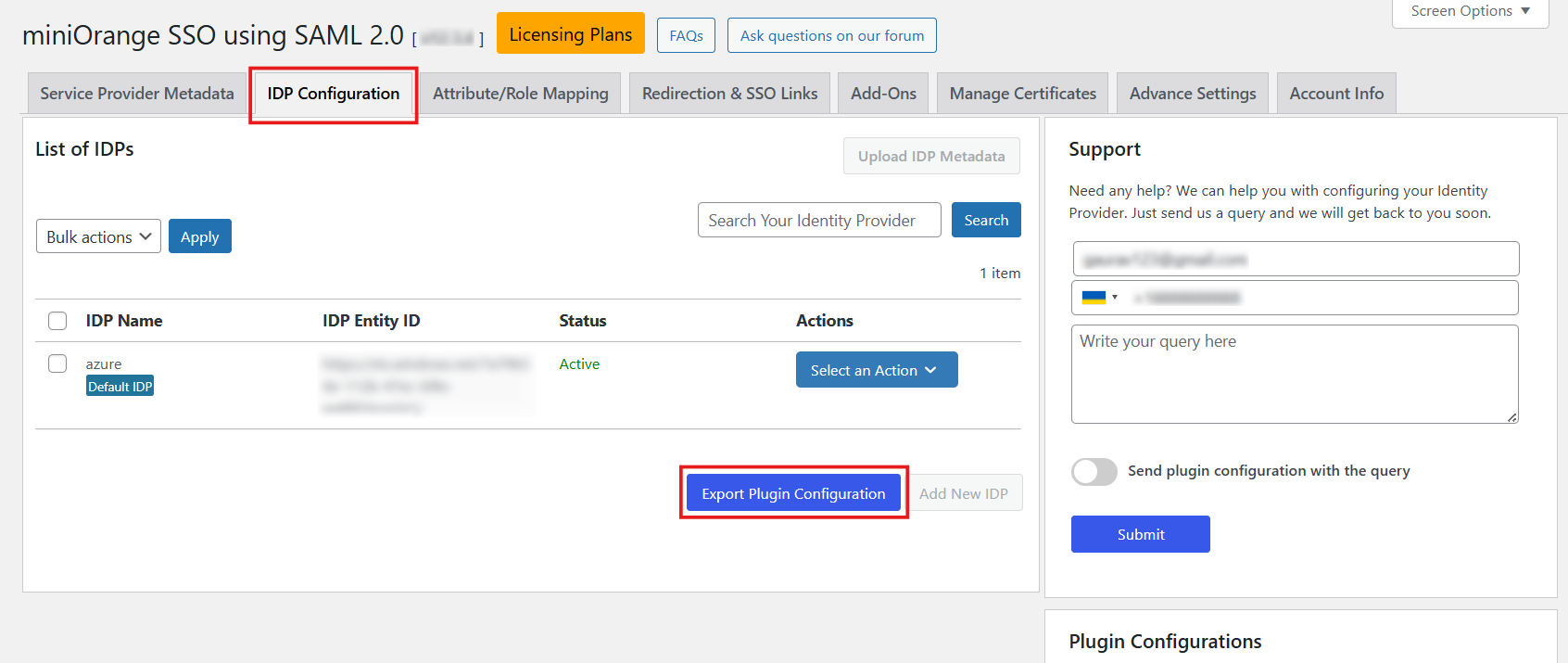
Before making changes, you can take a backup of your plugin configuration by clicking Export Plugin Configuration.
Still need help?
If the issue persists, feel free to contact us at samlsupport@xecurify.com. Our support team will assist you further.


