When Microsoft Entra ID (Azure AD) sends an email about an upcoming SAML signing certificate expiry or asks you to generate a new certificate, you must create and activate the new certificate in Entra ID and then update the certificate (or metadata) in the SAML SSO plugin for WordPress to avoid SSO failures.
When do we need to perform these steps?
Perform these steps when you receive any of the following notifications from Microsoft Entra ID:
- SAML signing certificate is expiring soon.
- Generate a new certificate / rotate certificate.
- Certificate renewal required for SAML SSO.
Step 1: Generate and activate a new SAML certificate in Microsoft Entra ID
- Sign in to the Microsoft Entra admin center.
- Go to Enterprise applications and open the SAML SSO application.
- From SAML, Navigate to Single sign-on.
-
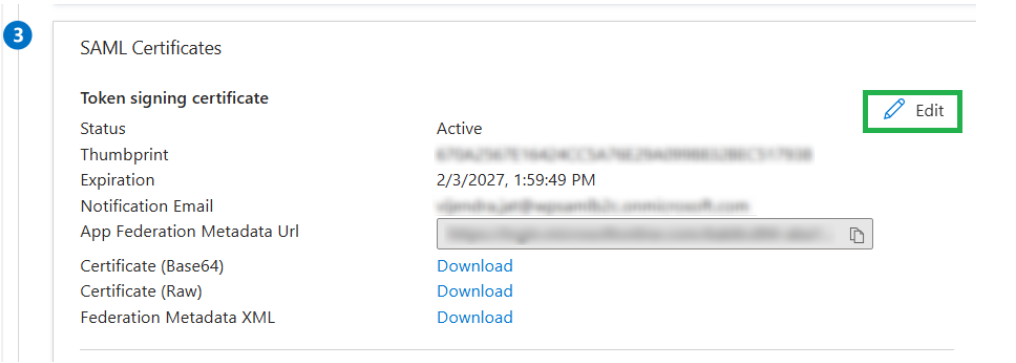
Under SAML Certificates, click Edit.
-
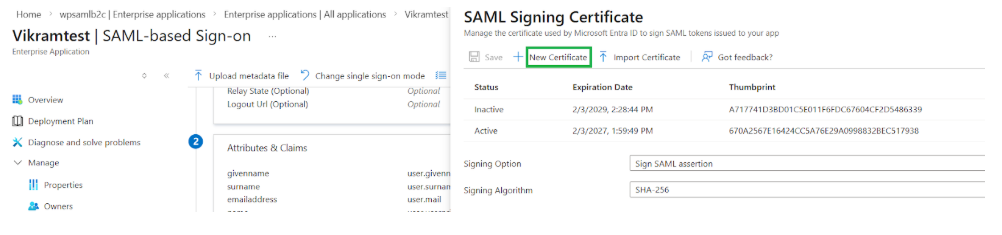
Click New Certificate and Select the required expiration date and click Save.
-
After the certificate is created, activate the new certificate (from the certificate options) and confirm the activation when prompted.
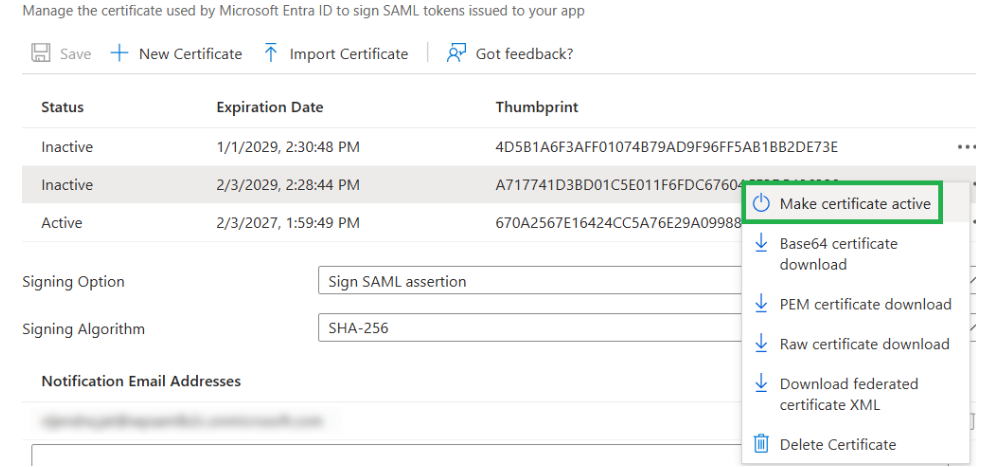
Important: After activating a new signing certificate, you must update the WordPress plugin with the new certificate/metadata. Otherwise, SSO may fail due to signature or certificate mismatch errors.
Step 2: Update the certificate in the SAML SSO plugin for WordPress
Option A (Recommended): Update using IDP Metadata
- From Entra ID, copy the Federation Metadata URL for the SAML application.
- In WordPress Admin, go to miniOrange SAML SSO Plugin.
- In the IDP Configuration, use Upload Metadata and update the metadata using the URL.
Option B: Use Metadata Sync (if available in your plugin plan)
- Go to IDP Configuration and edit the existing IDP setup.
-
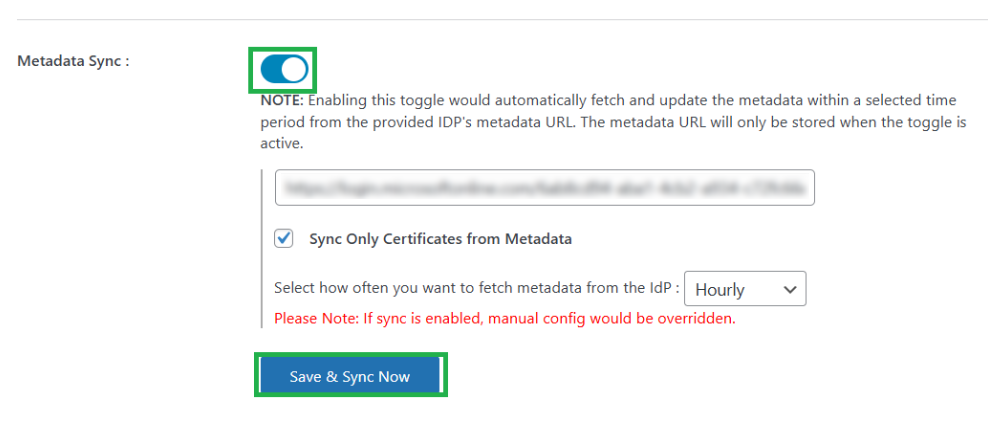
Enable Metadata Sync and paste the Metadata URL.
Note: For detailed information on Metadata Sync, please click here. -
Then, click on the Save & Sync Now button.
Step 3: Verify SSO
Run Test Configuration in the plugin and perform an end-to-end SSO test to confirm everything is working with the new certificate.
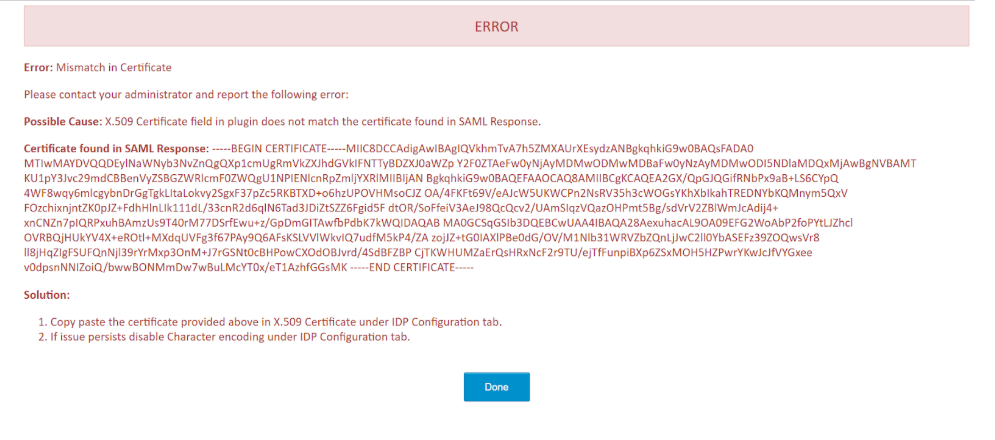
Common issue after certificate rotation: If SSO fails after rotating the certificate, it usually indicates the plugin still has the old certificate.
Typical error include:
-
Certificate mismatch: Follow this FAQ to resolve the Error.
Still need help?
Contact us at samlsupport@xecurify.com


